
How to Back Up WordPress Site and Database Quick and Easy Methods Explained
The user did not provide a keyword. I will use a relevant placeholder keyword for rephrasing and ask the user for clarification. Keeping a secure backup of your WordPress website isn’t just a good practice; it’s essential. Whether you run a simple blog or a full-fledged business website, unexpected issues like plugin conflicts, hacking attempts, server crashes, or accidental deletions can put your entire site at risk. That’s where regular backups come to the rescue, ensuring that your precious content and custom settings from your premium WordPress templates remain safe.
In this guide, you’ll learn quick, simple, and reliable methods to back up your WordPress files and database, ensuring your website is always protected. From using beginner-friendly backup plugins to performing manual backups for full control, we break down every method step-by-step.
By the end of this article, you’ll have a clear understanding of how to safeguard your WordPress website, so you can restore it anytime with confidence.
Why do you need to back up your WordPress site and database?
Backing up your website and database isn’t just a “good practice”; it’s a vital safeguard that protects everything you’ve built. No matter if you run a personal blog, an online store, or a full-scale business website, regular backups ensure your data stays safe, accessible, and fully recoverable whenever something goes wrong.
- Prevents Total Data Loss: Unexpected issues like accidental deletions, server breakdowns, or file corruption can erase your content instantly. A backup allows you to restore everything quickly instead of rebuilding your site from zero.
- Quick Recovery from Hacks and Malware: Cyberattacks are increasingly common. If your site gets infected or hacked, a clean backup lets you revert to a secure, working version almost immediately.
- Safety During Updates: Theme updates, plugin installations, or WordPress core upgrades can sometimes cause conflicts or break your site. With a backup in place, you can reverse any problematic update with ease.
- Protection from Server or Hosting Issues: Even top-tier hosting providers can experience outages, hardware failures, or unexpected technical faults. Storing backups separately ensures your site remains safe, even if your host encounters issues.
- Hassle-Free Restoration: If your site crashes or behaves unexpectedly, backups allow you to restore a fully functional version without stress or downtime.
- Shields You from Human Errors: A small mistake, such as editing the wrong file or modifying the database incorrectly (which can sometimes happen when trying to fix WordPress plugin update errors can disrupt the entire site. Backups act as a reliable fallback when something goes wrong.
- Ensures Smooth Business Operations: For businesses, website downtime can lead to lost sales and damaged credibility. Regular backups help maintain continuity and keep your site trustworthy and accessible.
How to Back Up a WordPress Site and Database? Methods
Before exploring each option, note that these methods will help you fully understand how to Back Up a WordPress Site and Database without complications. Whether you manage a single installation or are setting up a multisite on WordPress these approaches offer clarity on how to back up your website and database.
Backup plugins are the easiest choice for beginners, while manual backups offer maximum control. Below are all trusted methods that explain how to Back Up a WordPress Site and Database safely.
Method 1: Back Up Your WordPress Site and Database (Using a Plugin)
Before exploring each option, note that these methods will help you fully understand how to Back Up a WordPress Site and Database without complications. This is a critical step, just like using WordPress speed optimisation plugins to ensure your site's stability and reliability.
Backup plugins are the easiest choice for beginners, while manual backups offer maximum control. Below are all trusted methods that explain how to Back Up a WordPress Site and Database safely.
Step 1: Install and Activate the Plugin

- Log in to your WordPress admin dashboard.
- Go to Plugins > Add New.
- Search for UpdraftPlus.
- Locate “UpdraftPlus WordPress Backup Plugin” and click Install Now, then Activate.
- Access the plugin under Settings > UpdraftPlus Backups.
Step 2: Choose and Connect Remote Storage

Storing backups off-site is essential when learning how to Back Up a WordPress Site and Database safely.
- In the UpdraftPlus dashboard, open the Settings tab.
- Under Choose your remote storage, select your preferred cloud storage service.
- Scroll down and click Save Changes.
- After the page reloads, a link will appear prompting you to authenticate the connection.
- Click the link and follow the on-screen instructions to allow UpdraftPlus access to your cloud account.
- Once the connection is authorized, you’ll be redirected back to WordPress.
Step 3: Configure Automatic Backup Schedules

- In the same Settings tab, set your preferred schedule:
- File Backup Schedule: Weekly or fortnightly
- Database Backup Schedule: Daily
- Below these options, set the number of backups you want to retain. This prevents your server from being overloaded with old copies.
- Click Save Changes again.
Step 4: Create Your First Backup Manually

To make sure everything works correctly, you should run your first backup immediately.
- Go to the Bac
- kup/Restore tab.
- Click the Backup Now button.
- In the pop-up window, ensure the following options are selected:
- Include files in the backup
- Include the database in the backup
- Send the backup to your configured remote storage
- Click Backup Now again to start the process.
- Once completed, the backup will appear in the Existing Backups list, and you can verify that the copies have been uploaded to your cloud storage.
Method 2: How to Back Up a WordPress Site and Database (Manually)
Manually backing up your WordPress site involves two separate steps: downloading your website files and exporting your database. This method provides full control over every part of your backup, but it requires more time and attention than using a plugin.
Part 1: Backing Up WordPress Files (Using FTP/SFTP)

To save your WordPress files manually, you’ll connect to your hosting server using an FTP or SFTP client.
What You Need
- An installed FTP/SFTP client (such as FileZilla or Cyberduck).
- Your FTP/SFTP login details, provided inside your hosting control panel.
- A folder on your computer where you’ll store the backup.
Steps to Back Up Your WordPress Files
- Open your FTP client and enter your login credentials to connect to your hosting server.
- Once connected, navigate to the folder where WordPress is installed, typically public_html, www, or a directory named after your website.
- Select all files and folders inside this directory. These include important items like wp-content, wp-admin, and wp-includes, as well as configuration files such as wp-config.php.
- Drag and drop the selected items from the server (right panel) to your chosen backup folder on your computer (left panel).
- Wait for all files to finish downloading. This may take some time, depending on your site size.
Part 2: Backing Up the WordPress Database (Using phpMyAdmin)
Your WordPress database contains your posts, pages, comments, settings, and user information. You’ll export this data using phpMyAdmin.
What You Need
- Access to your hosting control panel.
- The name of your WordPress database.
Steps to Back Up Your Database
- Log in to your hosting control panel and open phpMyAdmin under the Databases section.
- In the left sidebar, click the name of the database used by your WordPress site. This will load all corresponding tables.
- Click the Export tab at the top of phpMyAdmin.
- In the Export method section, choose Quick.
- Make sure the export format is set to SQL.
- Click Go.
- Your database will download as an .sql file to your computer. Move this file into the same backup folder where you saved your site files.
Recommended WordPress Backup Plugins
Choosing the best WordPress backup plugin depends on your specific needs, such as budget, technical skill level, and website size. Here are the top plugins that simplify how to Back Up a WordPress Site and Database:
Duplicator
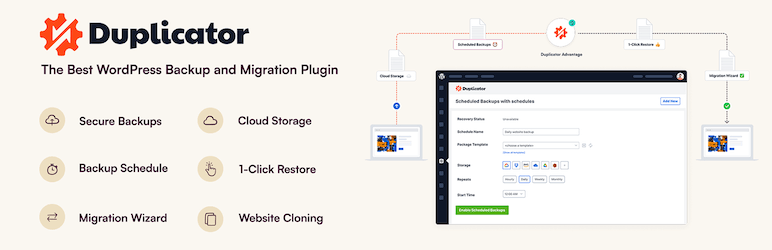
Duplicator is a powerful WordPress plugin that bundles your entire website, including all core files, plugins, themes, and the database, into a single compressed file called a "package" or "archive." Its primary value proposition is making the often-complex process of migrating or cloning a WordPress site simple, even for beginners.
Duplicator is an essential tool if you frequently build and move WordPress sites, and the Pro version is highly recommended for anyone running a business-critical or large website due to the automated features and large-site support.
Jetpack VaultPress Backup

The Jetpack VaultPress Backup plugin is one of the most reliable and premium backup solutions available for WordPress. It was originally a standalone service called VaultPress, created by Automattic, and has since been integrated into the Jetpack suite of products. Its core strength lies in its real-time, off-site protection and ease of use, making it ideal for high-stakes websites like e-commerce stores.
BlogVault
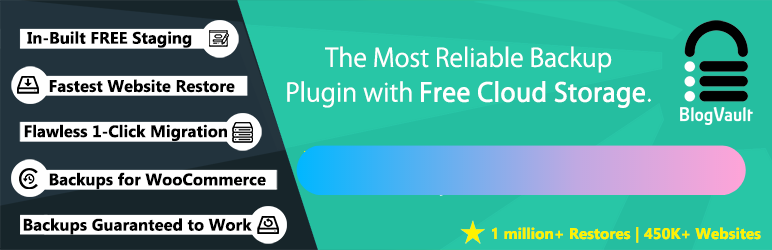
The BlogVault WordPress Plugin is considered an enterprise-grade, all-in-one platform for backups, security, staging, and migration. Unlike many traditional plugins that run backup processes directly on your web server, BlogVault is a Software as a Service (SaaS) solution. This SaaS approach is its biggest selling point, as it performs the heavy lifting on its own dedicated cloud servers, resulting in zero load on your website's host during backups, while complementing existing security measures like WordPress content security policy headers. Agencies and users managing multiple sites can use the BlogVault dashboard to control backups, updates, security, and staging for all their websites from a single location.
WPvivid
The WPvivid Backup & Migration Plugin is a popular and well-rounded solution for WordPress site owners, offering a strong free package that combines backup, migration, and staging features. It's often recommended as a great all-in-one alternative to plugins that specialize in only one of those areas.
WPvivid's greatest value is its feature-rich free version. If you are a single-site owner who needs reliable scheduled cloud backups and occasional site migrations/staging, the free plugin can easily meet your needs.
Conclusion
Backing up your WordPress site and its database is a non-negotiable step for any website owner, whether you're a blogger, an e-commerce store owner, or a business site owner. As we've explored, quick and easy methods, ranging from user-friendly plugins like UpdraftPlus and Duplicator to manual tools like phpMyAdmin and hosting dashboards, make the process accessible even for beginners. By regularly capturing your files and database, including all the customized components of your WP theme bundle you protect against data loss from hacks, plugin conflicts, or server crashes, ensuring minimal downtime and peace of mind.
Start small with a plugin if you're new, then scale to more advanced options as your site grows. Remember, a backup is only as good as its ability to recover; don't wait for disaster to strike. Implement the above methods today, and you'll have a robust safety net that lets you focus on creating great content rather than worrying about losses. If issues arise, your hosting provider or WordPress community forums are excellent resources for support. Stay proactive, and keep your site secure!