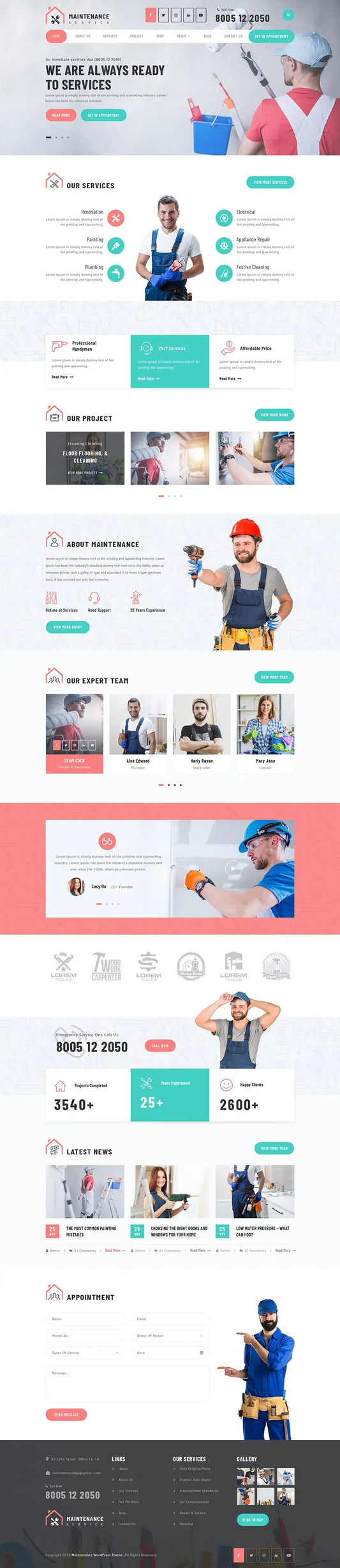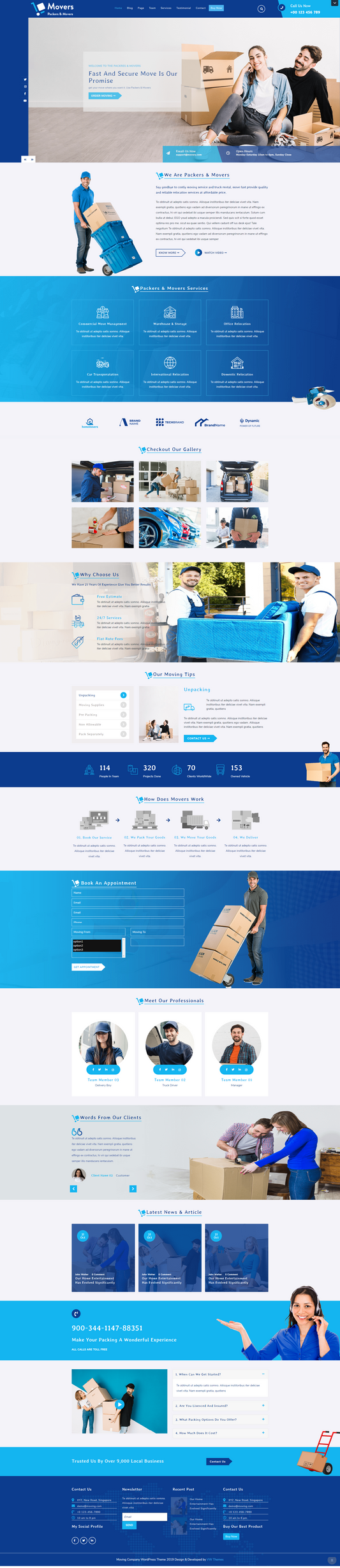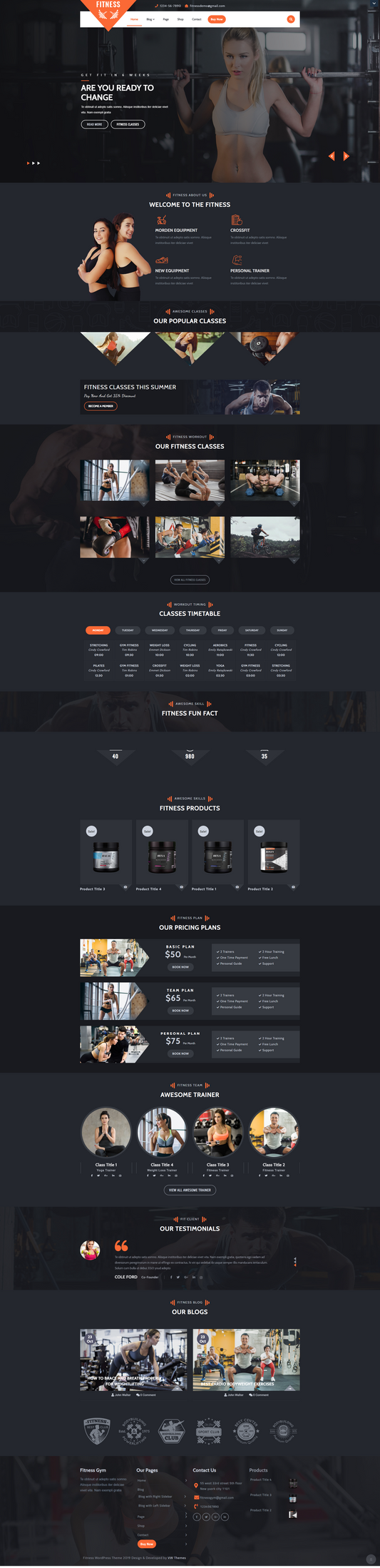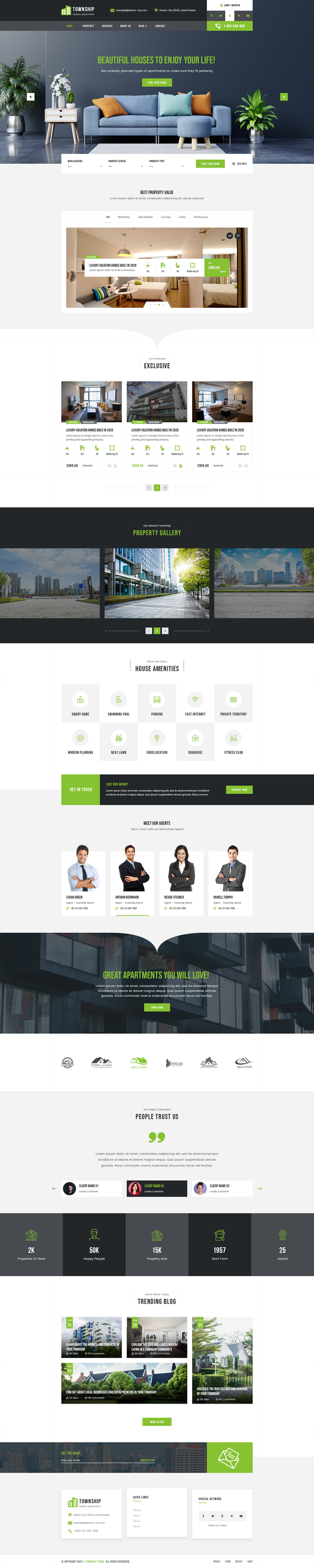

How to Create a Blog Page on WordPress for Beginners
“How to Create a Blog Page on WordPress” might be the primary question for beginners who are new to blogging. Creating a blog page is one of the first and most important steps when building a WordPress website. Whether you’re planning to share personal stories, publish tutorials, promote your business, or grow your online presence, WordPress makes it incredibly easy to set up a dedicated space for all your blog posts.
The best part? You don’t need any technical skills to do it. In this beginner-friendly guide, you’ll learn exactly how to create a blog page on WordPress, step by step. From creating the page itself to configuring your homepage settings and using premium WordPress templates we’ll walk you through every detail simply and practically.
By the end of this tutorial, you’ll have a fully functional blog page ready to display your posts beautifully, and you’ll be confident enough to keep building and growing your site with ease.
What Do You Need before Creating a Blog Page on WordPress?
Before you learn how to create a Blog Page on WordPress, there are a few basic things you should have in place. These will ensure a smooth setup and help you customise your blog page properly.
1. A WordPress Website: You must have WordPress installed, either:
- Self-hosted with hosting platforms like Bluehost, SiteGround, or Hostinger, or
- WordPress.com website
Make sure your website is already accessible via your domain for speeding up wordpress website
2. An Active WordPress Theme: Your theme controls how your blog page looks. You can use a free theme or a premium theme. Most themes have built-in blog layout settings, which makes customisation easier.
3. Basic Understanding of Pages vs. Posts: Before creating a blog page, understand the difference:
- Pages = Static content like Home, About, and Contact
- Posts = Blog articles displayed on your blog page
This helps you set the right content in the right place.
4. A Homepage: If you want a static homepage, create a “Home” page in advance. You can customise it later using the block editor or a page builder.
5. A Page Builder Plugin: If you want more advanced control over design, you can install tools like Elementor, Divi Builder, Beaver Builder, Spectra, or Kadence Blocks. These help you create custom blog layouts and enhance your homepage design.
6. Categories and Tags Plan: It’s easier to manage blog posts when you have a basic structure in mind:
- Main categories for your blog topics
- Secondary tags for more detailed classification
- This enhances both user navigation and SEO.
Step-by-Step: How to Create a Blog Page on WordPress
Follow these professional steps, refined from the specific workflow of logging in, creating the layout, and configuring the back-end settings.
1. Log in to the WordPress Dashboard
Start by accessing your administrative area. Type yourdomain.com/wp-admin into your browser. Enter your credentials to access the "back end." This is where the magic happens. A clean dashboard is the starting point for any successful technical configuration.
2. Create the Page and Define the Layout

The next phase of how to create a blog page on WordPress involves creating the actual "container" for your content.
- Create Page: Navigate to Pages > Add New. Title this page "Blog," "News," or "Journal."
- Add Layout (The Block Editor): Modern WordPress uses the Block Editor (Gutenberg). Instead of a blank white page, you want a dynamic layout. Click the "+" icon to add blocks.
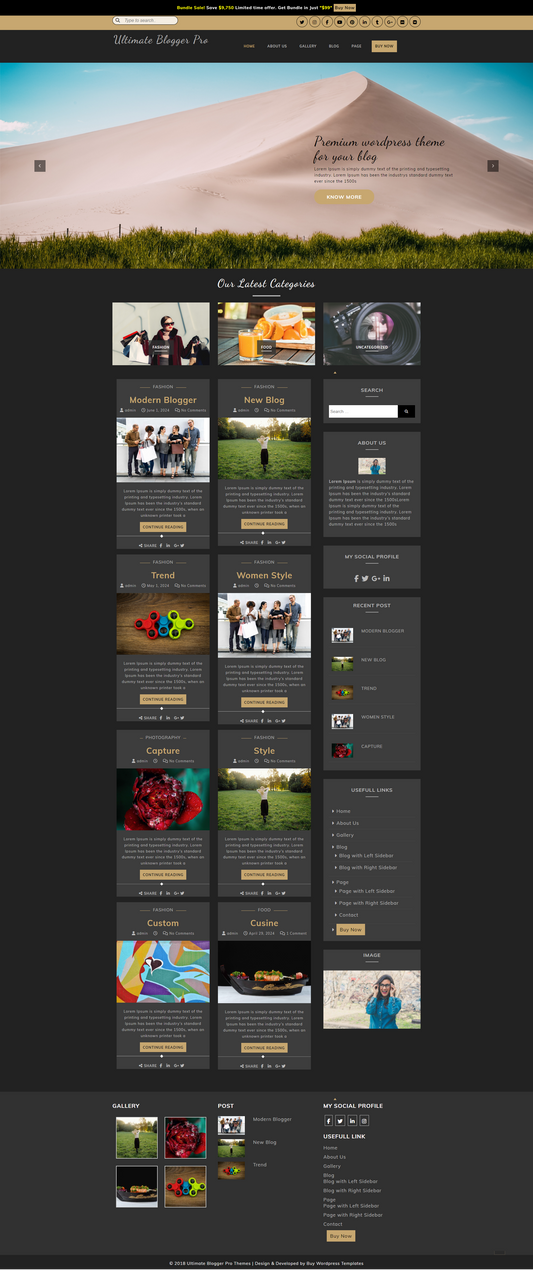
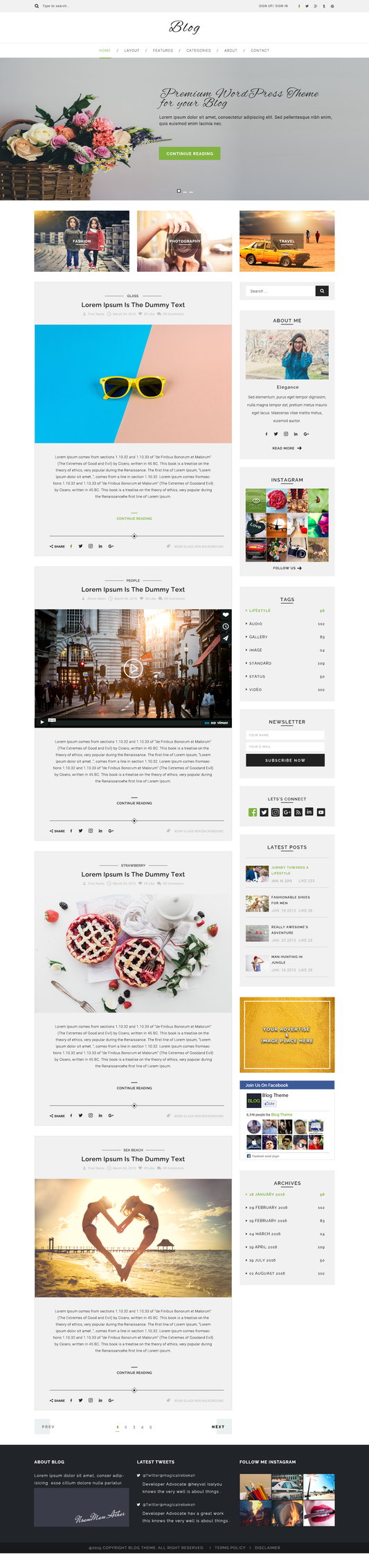
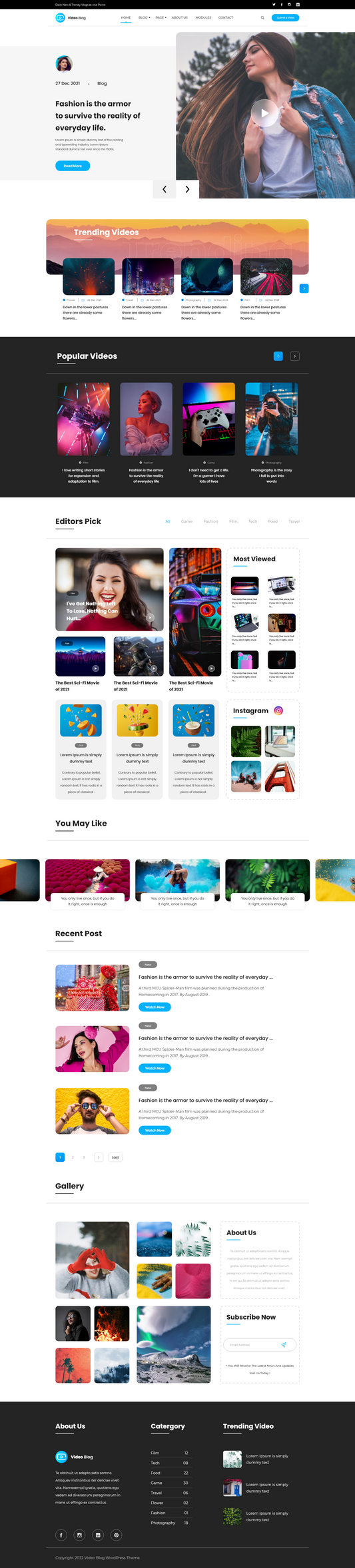
- Post Grid Block: Search for "Post Grid" or "Latest Posts." This block allows you to display your articles in a clean, organized fashion. For a professional look, set the display to Multiple Columns. This creates a magazine-style grid that is much more engaging than a single vertical list.
- The Sidebar: A classic blog layout often includes a sidebar. You can achieve this by using the "Columns" block and set a 70/30 split. Place your Post Grid in the larger column and your "About Me," "Categories," or "Search Bar" in the smaller sidebar column.
- Pagination: Don't let your page scroll forever. In the Post Grid settings, enable Pagination. This adds "Next" and "Previous" buttons (or page numbers), which are user-friendly website design tips for user experience and page load speed.
3. Configure Reading Settings

Once your page layout is designed, you must tell the WordPress core system that this specific page is the "official" home for your posts. This is a step many beginners miss.
- Navigate to Settings > Reading.
- Locate the section titled "Your homepage displays."
- Select the radio button for "A static page."
- From the Homepage dropdown, select your landing page (e.g., Home).
- From the Posts page dropdown, select the "Blog" page you just created.
- Save Changes: Once you hit save, your blog setup is O.K. and fully operational.
Tips to Make Your WordPress Blog Page Better
Here are the top tips, broken down into three key areas, for how to create a blog page on WordPress that will stand out:
- Choose a Clean, Readable Font: Prioritise readability. Use a font size that's easy on the eyes.
- Whitespace is Your Friend: Don't cram too much information. Ample whitespace makes the page feel less cluttered and directs the user's focus.
- Featured Image Consistency: Ensure all your posts have a compelling, high-quality featured image with a consistent aspect ratio.
- Clear Call-to-Action: What do you want people to do? Subscribe, read your top post, or browse a specific category? Make that button prominent.
- Title Tag and Meta Description: Ensure the multipurpose blog templates have a descriptive title tag and a compelling meta description. You can set this with a plugin like Yoast or Rank Math.
- Clean URLs: Set your permalink structure to be clean and descriptive.
- Structured Data: Use an SEO plugin to ensure your blog posts are marked up with proper schema so search engines understand your content better.
- Optimize Images: Compress images before uploading them. Use a plugin like Imagify or ShortPixel, or a service like TinyPNG. Serve images in modern formats (like WebP).
- Limit Posts on the Page: Displaying too many posts on your main blog archive page can slow it down. Aim for 6-10 posts.
- Implement Caching: Use a robust caching plugin to serve static HTML versions of your page.
Common Mistakes to Avoid When Creating a Blog Page on WordPress
When learning how to create a blog page on WordPress, beginners often make a few mistakes that can negatively affect website functionality, user experience, and SEO. One of the most common errors is adding content directly to the blog page, even though WordPress automatically fills this page with blog posts. Another frequent issue is failing to assign the blog page correctly in the Reading Settings, which prevents posts from appearing altogether. Displaying too many posts on a single page can slow down site performance and overwhelm visitors, while ignoring mobile responsiveness can reduce engagement and increase bounce rates. Additionally, choosing a cluttered or poorly structured layout instead of focusing on the best blog layouts for WordPress can impact readability and overall user experience. Avoiding these mistakes ensures your blog page remains well-structured, fast-loading, and easy to navigate for both users and search engines.
Common Mistakes to Avoid
- Adding text or images directly to the blog page instead of leaving it blank
- Forgetting to assign the blog page under Settings → Reading
- Displaying too many blog posts on a single page, which affects speed
- Ignoring mobile responsiveness and not previewing on different devices
- Choosing overly complex layouts that reduce readability
Conclusion
The above blog is the correct answer to “How to Create a Blog Page on WordPress,” especially when you understand the right steps. With the right theme, a well-structured menu, and clear customisation settings, you can build a professional-looking blog page in just a few minutes. Whether you’re starting a personal blog, sharing your expertise, or launching a content-driven business, WordPress gives you the flexibility and tools to design a blog that fits your goals.
Now that your blog page is ready, focus on what matters most: creating valuable, engaging, and SEO-friendly content. Keep your design clean, maintain consistent formatting by using a WP theme bundle and update your blog regularly to keep readers coming back.
By following this guide, you’ve not only set up your blog page but also taken the first step toward building a successful online presence. Keep experimenting, keep improving, and watch your WordPress blog grow!