
What Is Interaction to Next Paint (INP)? Complete Guide for Beginners
Web performance matters more than ever today. Users expect pages to respond instantly. When a page feels slow or unresponsive, visitors leave and they rarely come back. Interaction to Next Paint is a Core Web Vital metric developed by Google. It measures how quickly a webpage visually responds to user interactions. These interactions include clicking buttons, tapping links, or pressing keyboard keys.
INP replaced the older First Input Delay (FID) metric in March 2024. It gives a more complete picture of real-world page responsiveness. Instead of measuring just one interaction, it tracks all interactions throughout a user's visit. A good INP score sits at 200 milliseconds or below. Scores between 200ms and 500ms need improvement. Anything above 500ms signals a poor user experience.
Google uses INP as a ranking factor. A slow score can hurt your search engine visibility. A fast score can give you a competitive edge. This guide breaks down everything beginners need to know about INP. You will learn what it measures, why it matters, and how to improve it. Improving responsiveness is one of the most effective ways to increase website speed and enhance user experience.
What is Interaction to Next Paint?

Interaction to Next Paint is a Core Web Vital metric. It measures how fast a webpage responds to user interactions. Google uses it to evaluate real-world page responsiveness.
INP tracks every click, tap, and keyboard input on a page. It then reports the worst-case response time. A low INP score means your page feels fast and smooth. A high score means users experience frustrating delays.
Why does interaction to next paint matter to website owners?
Interaction to Next Paint (INP) is a vital metric that measures how quickly a website responds to user inputs. Since Google made it a Core Web Vital in 2024, it has become a critical factor for anyone managing a digital presence. Here is why it should be on your radar:
- It Impacts Your Search Ranking: Google uses responsiveness as a ranking signal. Sites with poor INP scores may see a drop in search visibility. Better responsiveness helps you climb higher in search results.
- It Directly Affects Conversion Rates: Users lose patience when a site feels "laggy." If a button click takes too long to register, shoppers often abandon their carts. Smooth interactions keep users moving toward a checkout or signup.
- It Reflects True User Experience: Unlike older metrics, INP looks at the entire duration of a user's visit. It identifies delays across all clicks, taps, and keyboard presses. This provides a more accurate picture of how "snappy" your site feels.
How to Measure Interaction to Next Paint?
Measuring how quickly your site responds to user input is a vital part of modern web maintenance. To get an accurate reading, you should look at both "Field Data" from real users and "Lab Data" from controlled tests. Here is how you can effectively measure Interaction to Next Paint to ensure your site stays responsive.
1. Use Google Search Console: This is the best place to start for site owners. The Core Web Vitals report shows how your pages perform for actual visitors.
Pros: It uses real-world data from the Chrome User Experience Report (CrUX).
Action: Look for "Need Improvement" or "Poor" ratings in the mobile and desktop tabs.
2. Run a PageSpeed Insights Test: Enter your URL into this free tool to see a detailed breakdown. It provides a specific score for your site’s responsiveness.
Pros: It highlights exactly which scripts are causing delays.
Action: Scroll down to the "Diagnostics" section to find "Long Main-Thread Tasks."
3. Use Chrome DevTools: For a more technical deep dive, use the "Recorder" or "Performance" panel in your browser.
- Open your website in Chrome.
- Right-click and select Inspect.
- Go to the Lighthouse tab and run a report.
- Interact with the page (click buttons, open menus) to see live latency.
4. Install the Web Vitals Extension: This Chrome extension shows you metrics in real-time as you browse. It captures the latency of every click and keypress.
Pros: You can see exactly which element is slow while you are using it.
Action: Watch the "Console" log to identify the specific HTML element causing the high score.
What is a Good INP Score? And how is it calculated?
Interaction to Next Paint is a Core Web Vital metric that measures how quickly a webpage responds to user interactions like clicks, taps, and keyboard inputs.
Google defines INP score thresholds as follows:
- Good: 200 milliseconds or less. Your page feels fast and responsive to users.
- Needs Improvement: Between 201 and 500 milliseconds. Users may notice slight delays.
- Poor: Above 500 milliseconds. The page feels sluggish. Users are likely to leave.
How is INP Calculated?
INP measures the time between a user interaction and the next visual update on screen. Here is how the process works:
- Step 1 - Input Delay. The browser receives the interaction. Any background tasks can delay this step.
- Step 2 - Processing Time. The browser runs the event handlers tied to that interaction. Heavy JavaScript slows this down.
- Step 3 - Presentation Delay. The browser paints the visual update to the screen. Layout and rendering work happen here.
The total INP time = Input Delay + Processing Time + Presentation Delay.
Throughout a session, the browser records all interactions. It then picks the worst-performing one to represent the final INP score. For pages with many interactions, it may ignore a small percentage of the slowest outliers to avoid skewing results.
How does the interaction with the next paint work?
Interaction to Next Paint measures the full journey from a user's action to the moment the browser visually responds. Understanding this process helps you diagnose and fix performance issues faster.
The Three Phases of an Interaction
Every interaction goes through three distinct phases before the screen updates.
Phase 1 - Input Delay
This is the waiting period. The browser receives your click, tap, or keystroke. However, it cannot respond immediately if the main thread is busy. Background tasks, long JavaScript execution, or heavy scripts can block the main thread. The longer the block, the higher the input delay.
Phase 2 - Processing Time
Once the main thread is free, it runs the event handlers. These are the functions triggered by your interaction. Complex logic, DOM manipulation, or unoptimized JavaScript extends this phase. Keeping event handlers lean and efficient is critical here.
Phase 3 - Presentation Delay
After processing, the browser prepares the visual update. It calculates layout changes, applies styles, and paints pixels to the screen. Large layout shifts or expensive rendering tasks increase this delay. The frame is not shown to the user until this step is complete.
What Counts as an Interaction?
Not every user action is tracked. INP only measures three types of interactions:
- Clicks - mouse button presses on elements
- Taps - touch inputs on mobile devices
- Keyboard inputs - key presses on interactive elements
Scrolling and hovering are not included in the INP calculation.
How is the Final INP Score Determined?
The browser silently tracks every qualifying interaction during a page visit. Each one gets a response time. At the end of the session, the browser does not average them. Instead, it selects the slowest interaction as the final score. For pages with many interactions, it may drop a small number of extreme outliers. This gives a more realistic picture of overall page responsiveness.
How to Optimize Interaction to Next Paint(INP)?
Optimizing Interaction to Next Paint (INP) is all about making your website feel snappy. When a user clicks or taps, they expect an immediate visual reaction. If the browser is too busy to update the screen, the user perceives the site as "laggy." To fix this, you need to reduce the time between a user action and the next frame being painted on the screen.
1. Break Up Long Tasks
The main culprit for high INP is long-running JavaScript. If a script takes longer than 50ms, it blocks the main thread.
- Identify heavy functions using Chrome DevTools.
- Use setTimeout or requestIdleCallback to yield to the browser.
- Divide large loops into smaller chunks.
2. Streamline Event Handlers
The code that runs directly when someone clicks a button should be minimal.
- Avoid doing heavy calculations inside event listeners.
- Move non-essential logic to a Web Worker.
- Prioritize the "visual feedback" code first.
3. Minimize Input Delay
Input delay is the time the browser spends waiting for the main thread to become free.
- Reduce the total amount of JavaScript sent to the page.
- Use Code Splitting to load only what is necessary.
- Avoid excessive third-party scripts that hog the CPU.
4. Optimize Rendering and Layout
Sometimes the delay isn't the script itself, but how the browser renders the result.
- Avoid "Layout Thrashing" by not reading and writing styles in quick succession.
- Use the CSS content-visibility property for off-screen content.
- Keep your DOM tree shallow and simple.
Choose a Performance-Optimized Theme for Better INP Scores
Improving Interaction to Next Paint (INP) is not only about optimizing scripts and reducing long tasks. The foundation of your website also plays a major role in how quickly pages respond to user interactions. A well-coded WordPress theme can significantly reduce input delay, improve rendering speed, and create smoother user experiences.
Using a lightweight and performance-focused theme helps minimize unnecessary JavaScript, reduces DOM complexity, and ensures faster visual updates after user actions. This directly contributes to better Core Web Vitals performance, including improved INP scores.

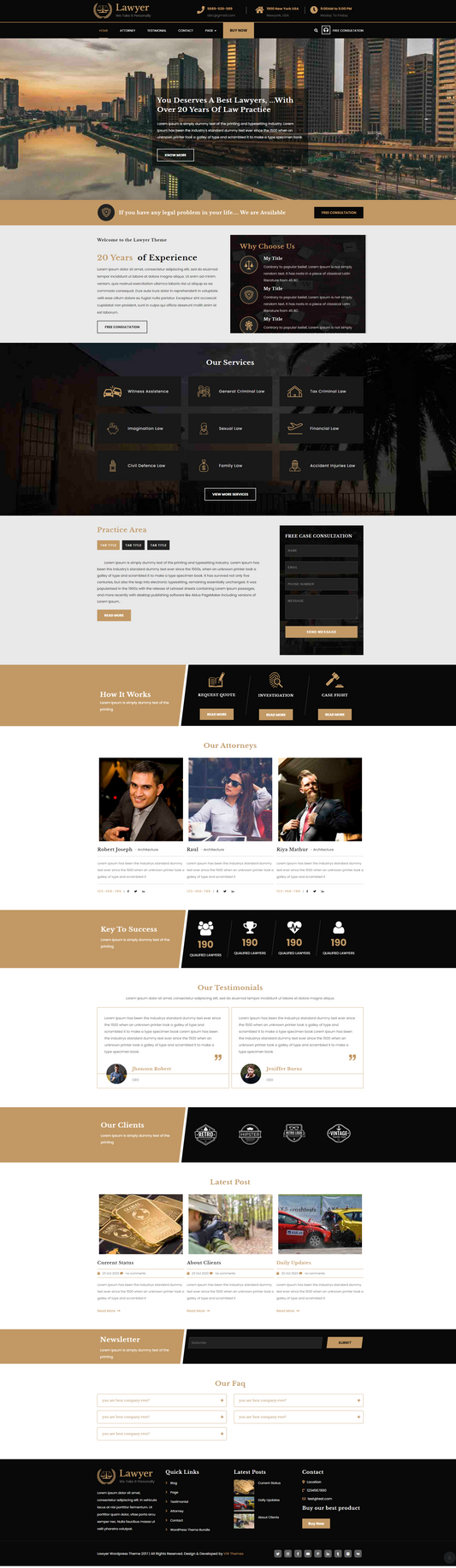
The Business Consultant WordPress Theme is designed with modern performance standards in mind. It combines clean coding practices, responsive layouts, and optimized loading structures that support faster interaction responses across devices. Whether you are building a business website, agency portfolio, or professional service platform, a well-optimized theme helps maintain responsiveness while delivering a polished design.
By choosing a Premium WordPress theme built for speed and usability, you can reduce technical bottlenecks before applying advanced optimizations. Pairing a performance-ready theme with good optimization practices makes it easier to achieve a fast, responsive website that meets Google’s Core Web Vitals expectations.
Conclusion
Understanding Interaction to Next Paint is essential for every website owner and developer. INP measures how fast your page responds to real user interactions. A good score is 200 milliseconds or less. Poor scores frustrate users and hurt search rankings. Every interaction passes through three phases: input delay, processing time, and presentation delay. Reducing friction in each phase improves your overall score. The fixes do not have to be complex. Break up long tasks. Lighten your event handlers. Defer non-critical scripts. Use Web Workers for heavy processing. Monitor your score regularly using Chrome DevTools and PageSpeed Insights. INP became an official Core Web Vital in March 2024. It now plays a direct role in how Google evaluates your site. Start measuring your score today. Identify the slowest interactions first. Apply targeted fixes consistently. A faster, more responsive page leads to better user experience and stronger search visibility.
Frequently Asked Questions
Q1. Does INP affect SEO and Google rankings?
Yes. INP is an official Core Web Vital. Google uses Core Web Vitals as a ranking signal. A poor INP score can negatively impact your search visibility. Improving your score can contribute to better rankings over time.
Q2. What is a realistic INP improvement timeline?
There is no fixed timeline. It depends on your site's complexity. Simple fixes like deferring scripts can show results quickly. Larger optimizations like code splitting may take more time. Measure your score before and after each change. Consistent small improvements lead to significant long-term gains.
Q3. Does INP apply to all websites?
INP applies to any website that has user interactions. It is especially important for eCommerce sites, news portals, web applications, and content-heavy pages. Static pages with minimal interactions are less affected but should still aim for a good score.
Q4. Can third-party scripts affect my INP score?
Yes. Third-party scripts like chat widgets, ad networks, and analytics tools run on the main thread. They can cause input delays and slow down event processing. Audit your third-party scripts regularly. Remove or defer any that are not essential to your page.