
Shopify 3D Product Viewer to Enhance Product Presentation
Modern ecommerce shoppers expect more than static images before making a purchase decision. They want to examine products closely, understand real proportions, and feel confident about what they are buying. This is where immersive product visualization is transforming online stores. The Shopify 3D Product Viewer gives merchants the ability to showcase products in an interactive format that allows customers to rotate, zoom, and explore items from every angle, creating a shopping experience that feels far closer to in-store browsing. By reducing uncertainty and increasing engagement, 3D visualization directly influences buyer behavior and sales performance. As online competition grows, stores that offer richer product experiences gain a measurable advantage in trust, time-on-page, and conversion rates.
This guide explains exactly how to implement this technology step by step, optimize it for performance, and pair it with the right theme structure to ensure maximum impact. When used correctly, interactive product visualization becomes one of the strongest tools for building credibility and driving long-term ecommerce growth.
What Is Shopify 3D Product Viewer?
The Shopify 3D product viewer is an interactive feature that allows customers to view products as fully rotatable three-dimensional models within the product page. Unlike traditional product photos, which offer limited viewing angles, 3D models enable users to rotate items in any direction, zoom in on details, and explore textures, shapes, and proportions with precision.
This viewer supports industry-standard 3D formats such as GLB and USDZ, ensuring compatibility across devices and browsers. On mobile devices, the experience becomes even more powerful through premium Shopify templates and built-in augmented reality support, allowing shoppers to place products in their real environment using their phone camera.
By integrating this feature into product pages, merchants create a more transparent and trustworthy shopping experience. Customers feel more confident about what they are buying, which directly impacts engagement, satisfaction, and purchase decisions.
Why 3D Product Viewing Matters for Ecommerce Sales
Ecommerce stores that adopt immersive product visualization gain significant competitive advantages. The most immediate benefit is higher conversion rates. When customers can interact with a product, they better understand its size, quality, and functionality, reducing uncertainty that often prevents online purchases.
Another major advantage is lower product return rates. Returns frequently occur because products do not meet customer expectations. 3D viewing minimizes this risk by presenting products more accurately, helping buyers make informed decisions. Many of the best shopify ecommerce themes now integrate these features seamlessly to help merchants stand out.
Beyond conversions and returns, 3D visualization also strengthens brand perception. Stores offering advanced interactive features appear more innovative and trustworthy, which increases long-term customer loyalty. In crowded markets, this differentiation becomes critical.
The impact extends across marketing channels as well. Product pages with 3D viewers keep users engaged longer, improving dwell time and reducing bounce rates, two behavioral signals that contribute to stronger SEO performance.
How to Add Shopify 3D Product Viewer (Step-by-Step)
The following step-by-step process will guide you through setting up interactive 3D product viewing for your Shopify store.
Step 1: Create or Obtain a 3D Model (GLB / USDZ)

The foundation of a successful shopify 3d product viewer experience begins with a high-quality 3D model of your product. This model must accurately represent the product’s shape, dimensions, textures, and materials to build customer trust and improve buying confidence. You can either create these models in professional 3D software or outsource them to a 3D modeling service.
Key actions in this step:
-
Choose professional tools like Blender, Maya, or SketchUp for modeling
-
Maintain realistic lighting, textures, and proportions
-
Export the final model in GLB format for browsers and USDZ for iOS AR support
-
Compress files carefully to balance quality and loading speed
-
Review the model for visual errors, missing textures, or rough edges
Investing time in this step ensures your product visualization appears premium and performs smoothly on all devices. A poorly designed model can reduce credibility and hurt conversions, while a clean, optimized model strengthens customer confidence from the first interaction.
Step 2: Upload 3D Model to Shopify Product Media

Once your model is ready, the next phase of activating the shopify 3d product viewer is uploading the file directly into your Shopify admin. Shopify treats 3D models as standard product media, making the process simple and accessible for non-technical users.
Follow these steps carefully:
-
Log in to your Shopify admin dashboard
-
Navigate to Products and open the target product
-
Scroll to the Media section and click Add media
-
Upload your GLB or USDZ file just like an image or video
-
Save the product after the upload completes
After uploading, Shopify automatically recognizes the file as a 3D object and prepares it for interactive display. You do not need third-party apps or coding. This built-in functionality ensures the 3D viewer integrates seamlessly with your product page while keeping store performance optimized and loading times fast.
Step 3: Enable 3D Model Preview on the Product Page

With the model uploaded, your shopify 3d product viewer becomes functional once preview settings are confirmed. Shopify automatically activates the 3D viewer, but you must verify that your theme supports interactive display and that the viewer appears prominently on the product page.
Important checks to perform:
-
Open the product page in your storefront preview
-
Confirm the 3D icon appears over the product media
-
Click the model to test rotation, zoom, and interaction
-
Check that the viewer works inside image galleries and sliders
-
Ensure the viewer remains centered and clearly visible
Well-structured Shopify Image Galleries can complement 3D models by letting customers switch easily between interactive views, product photos, and detailed close-ups.
On supported mobile devices, the “View in your space” AR option will appear automatically, allowing shoppers to place the product in their environment. This step transforms static browsing into immersive exploration, giving customers deeper confidence before making a purchase.
Step 4: Test Across Devices and Browsers
A professional shopify 3d product viewer experience must perform consistently on all devices. This step ensures customers enjoy the same smooth interaction whether they shop from desktop, tablet, or mobile.
Testing checklist:
-
Open your store on Chrome, Safari, Firefox, and Edge
-
Test on both Android and iOS smartphones
-
Rotate, zoom, and move the model repeatedly
-
Activate AR mode on supported mobile devices
-
Check page load speed and visual stability
Watch for issues such as lag, broken textures, layout shifts, or slow rendering. Fixing these problems early prevents customer frustration and protects conversion rates. Consistent testing allows you to deliver a reliable, polished experience that reflects professionalism and builds long-term brand trust.
Step 5: Optimize for Speed and Performance
Optimization ensures your shopify 3d product viewer enhances conversions without harming page performance. Even the best 3D experience fails if pages load slowly or behave inconsistently.
Optimization strategies:
-
Compress 3D models without sacrificing visual clarity
-
Remove unnecessary textures or hidden mesh elements
-
Limit file size while maintaining sharp resolution
-
Enable Shopify’s built-in image and asset optimization
-
Use a performance-optimized Shopify theme
Monitor your store’s speed using Shopify’s performance reports and browser developer tools. A fast-loading 3D experience keeps customers engaged longer, reduces bounce rates, and improves overall SEO signals. When speed and interactivity work together, the result is a premium shopping experience that converts visitors into loyal customers.
Best Practices for Ongoing Optimization
After launching the Shopify 3D Product Viewer, continuous optimization ensures maximum impact. Track customer interactions and engagement to see which products benefit most. Keep 3D models updated and compressed for accuracy and fast loading.
Use A/B testing to experiment with viewer placement, layout, and calls-to-action to boost conversions. Regularly review performance on Shopify dropshipping themes and mobile responsiveness to maintain a smooth, engaging shopping experience. Treat 3D visualization as an evolving tool to strengthen trust, reduce returns, and drive long-term growth.
Choosing the Right Shopify Theme
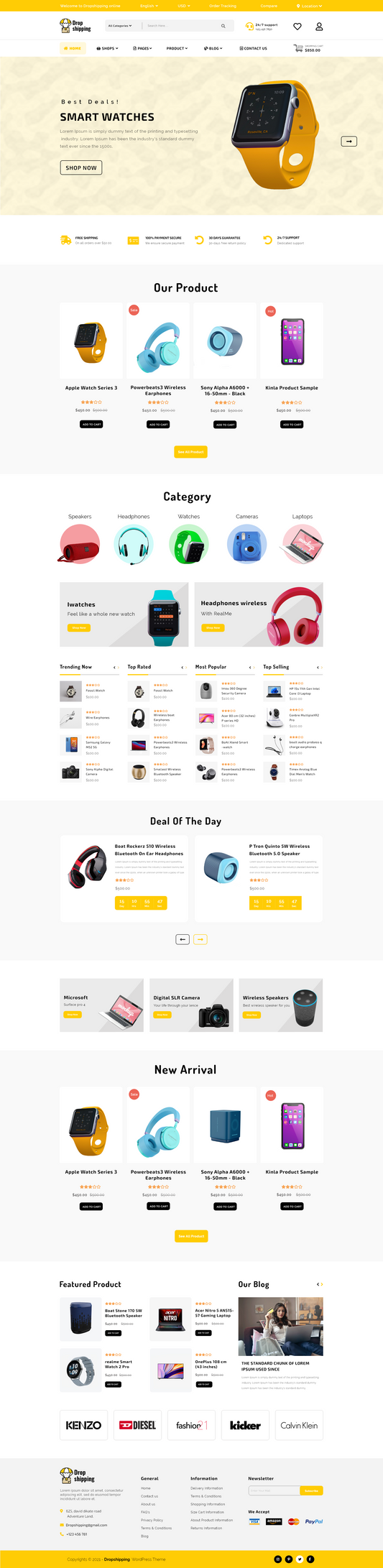
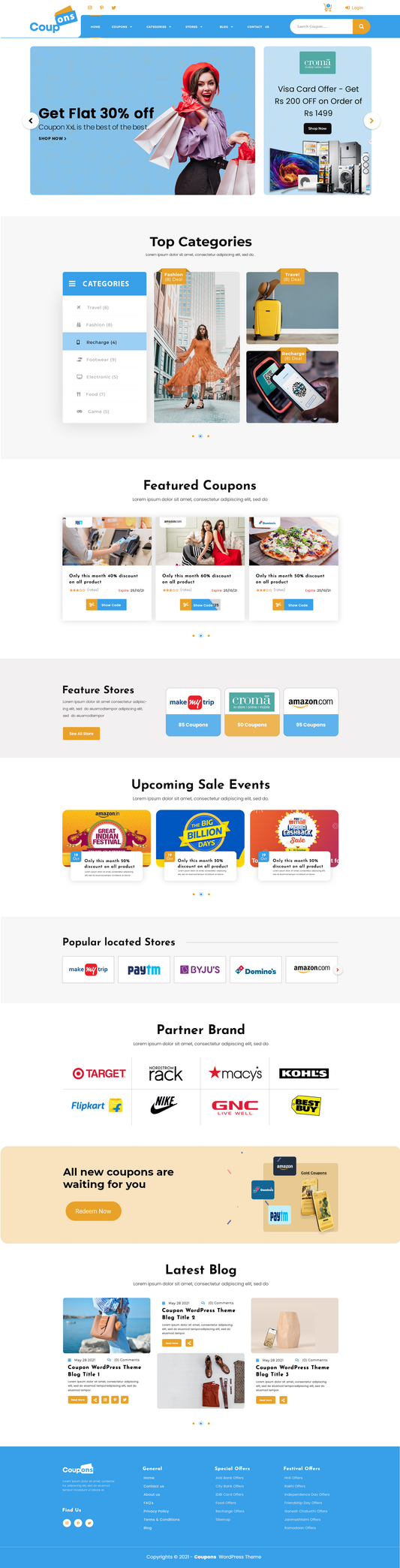
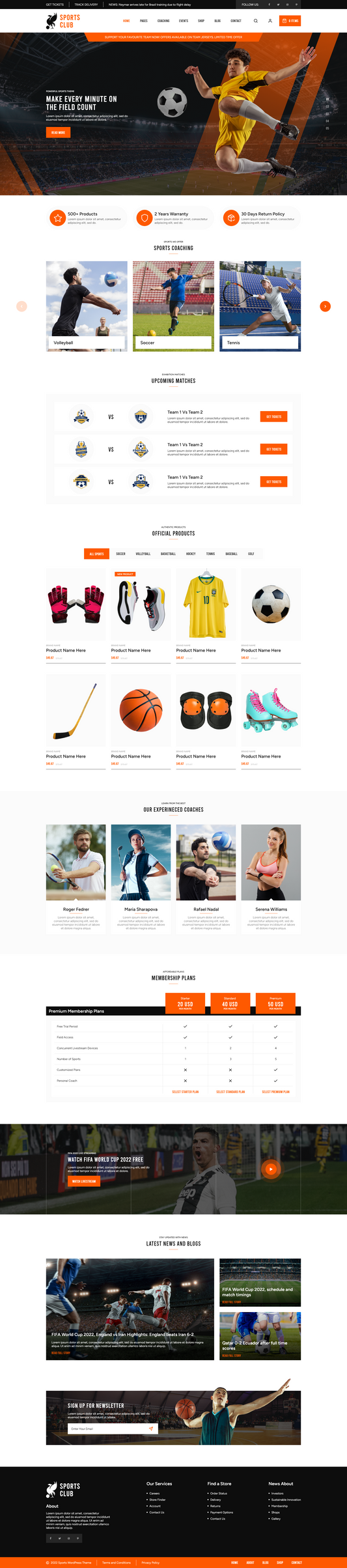
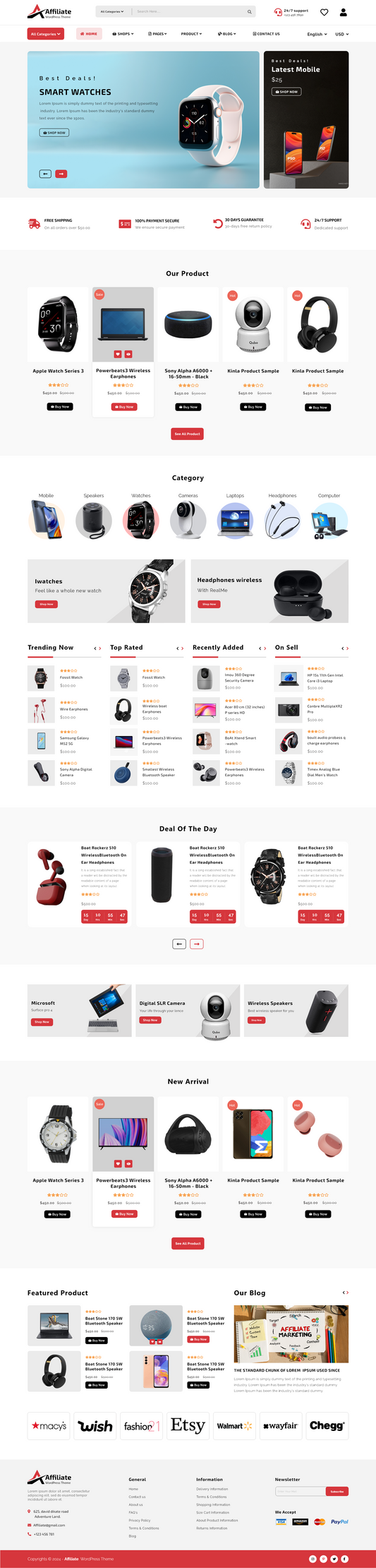
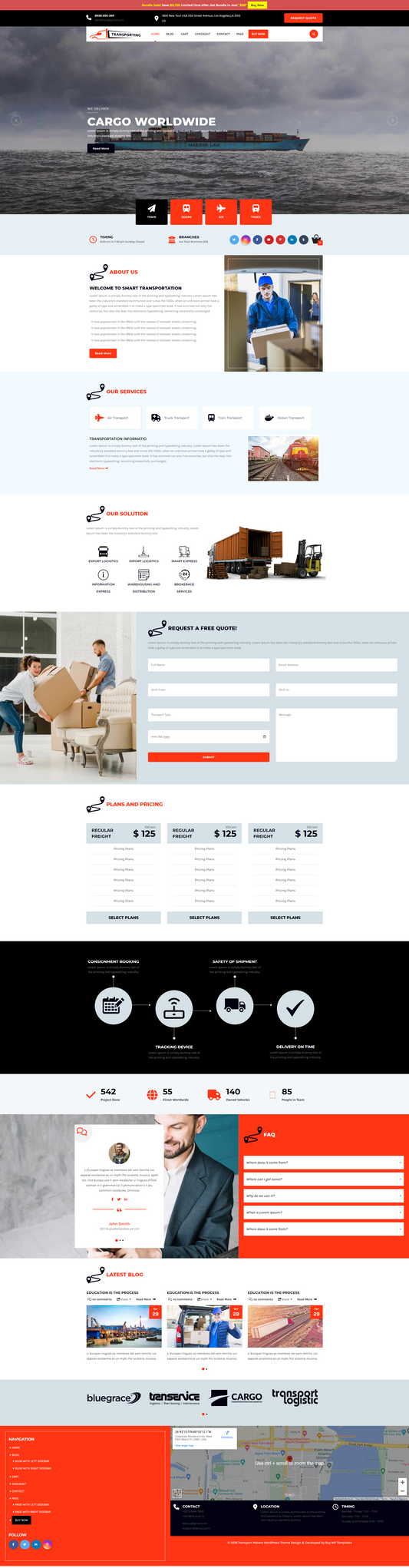
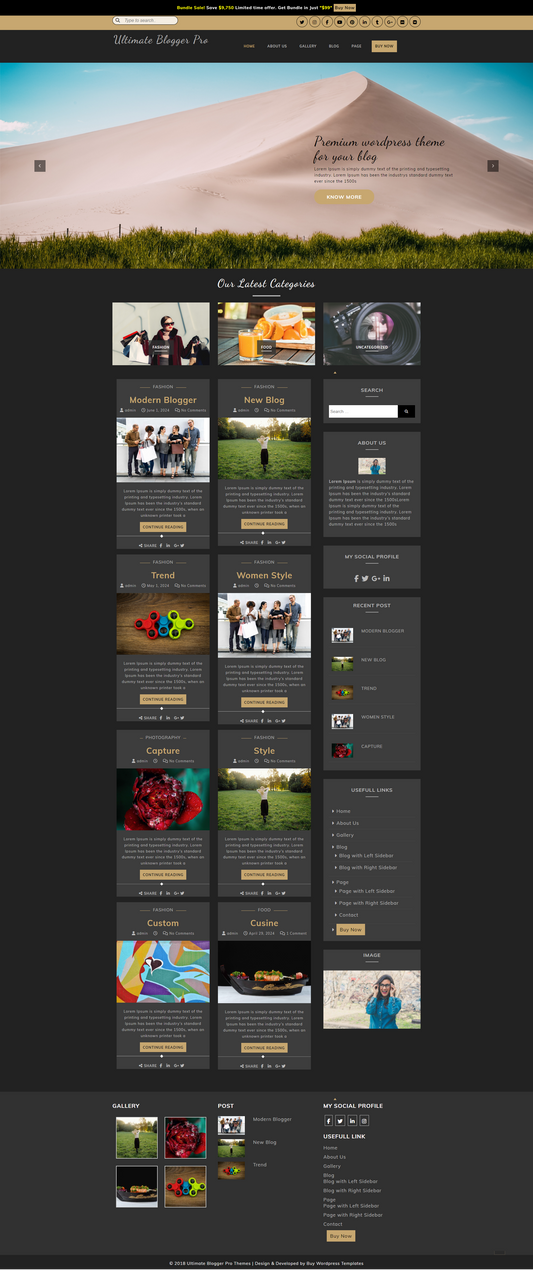
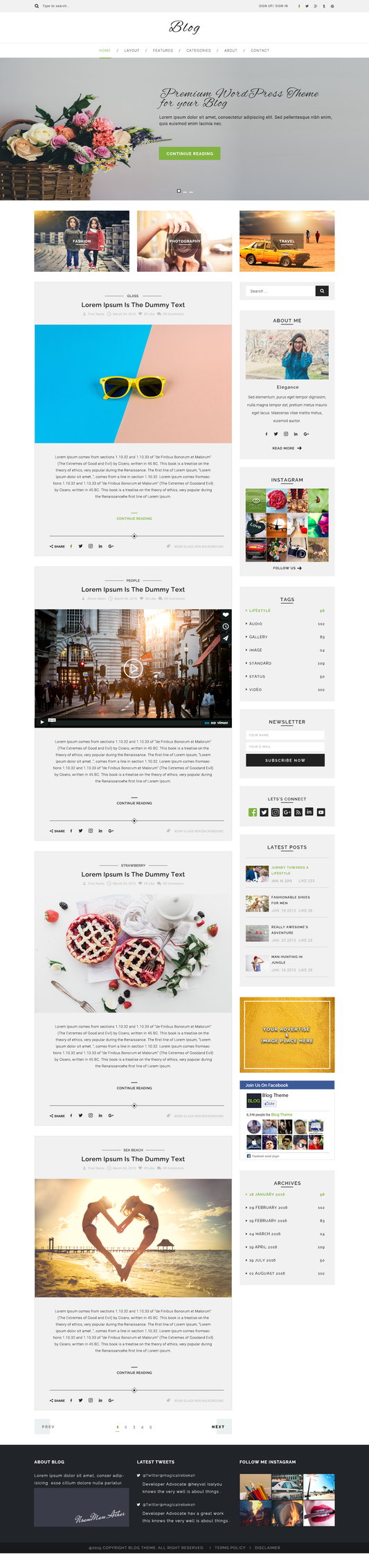
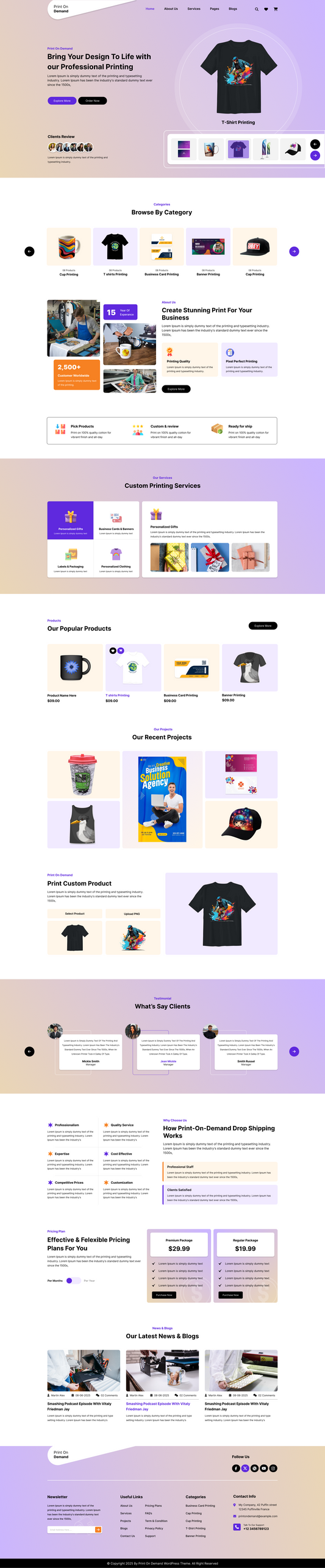
While the Shopify 3D product viewer is a built-in platform feature and not part of the theme itself, the theme you choose plays a critical role in how effectively that 3D experience is displayed and converted into sales. Shopify themes such as Adorn , Flaunt Choice and Ace offer some of the best Shopify layouts designed with clean product structures, strong visual hierarchy, and performance-optimized frameworks that work seamlessly with Shopify’s native 3D and AR functionality.
These themes ensure that 3D models appear prominently on the product page, load smoothly alongside other media, and maintain layout stability across devices. By combining Shopify’s immersive product technology with a well-structured, conversion-focused theme, merchants can deliver a professional shopping experience that builds trust, increases engagement, and supports higher conversion rates.
Conclusion
Interactive product visualization is no longer a luxury feature; it is a proven sales driver for modern ecommerce stores. When implemented correctly, the Shopify 3D Product Viewer strengthens customer confidence, improves engagement, reduces returns, and supports higher conversion rates across every device. From preparing accurate 3D models to optimizing performance and selecting a conversion-focused theme, each step plays a vital role in delivering a seamless shopping experience. Stores that combine immersive technology with clean design, fast loading speeds, and intuitive navigation consistently outperform competitors using traditional product presentation.
Beyond immediate sales improvements, this approach builds long-term brand trust and positions your store as innovative and customer-centric. As online shoppers continue to demand richer experiences, businesses that invest in interactive product displays today create a powerful foundation for sustainable growth. By following the strategies in this guide, merchants can confidently turn product pages into high-impact sales assets that drive revenue, loyalty, and brand authority.