
How to Create WooCommerce Product Bundles in WordPress
Are you looking to increase your online store's revenue? Selling related products together is a smart strategy. It encourages customers to buy more in a single purchase. This is exactly where WooCommerce product bundles come in handy.
Product bundles let you group multiple items and sell them as one package. This approach benefits both you and your customers. Shoppers get more value for their money. You get a higher average order value. WooCommerce makes it easy to set this up. You don't need advanced technical skills. A few simple steps are all it takes. Whether you run a fashion store, electronics shop, or a gift store, bundles work for every niche.
In this guide, we will walk you through the entire process. You will learn how to create, configure, and manage product bundles in WordPress. By the end, you will be ready to launch your first bundle and start boosting sales right away.
What are Woocommerce Product Bundles?
Have you ever seen a "Buy More, Save More" deal in an online store? That is the basic idea behind product bundles. They allow store owners to group multiple products together. Customers can then purchase them as a single package.
WooCommerce product bundles are a powerful selling feature. They help you combine related or complementary items into one offer. For example, you can bundle a camera with a memory card and a carrying case. It creates a complete solution for the customer. Bundles are not just about convenience. They are a proven sales strategy. They increase the perceived value of your products. They also encourage customers to spend more per order.
As a store owner, bundles give you more control. You can set a special bundle price. You can also offer a discount to make the deal more attractive. This keeps customers happy and improves your profit margins. In short, product bundles are a win-win. Customers get a better deal. You get higher sales and better revenue.
Benefits of Woocommerce Product Bundles
Why should you start using product bundles in your store? The reasons are compelling. Here are the key benefits you need to know.
1. Increase Average Order Value: Bundles encourage customers to buy more at once. Instead of purchasing one item, they buy a package. This naturally increases the amount spent per order. Your revenue grows without extra marketing effort.
2. Move Slow-Selling Products: Do you have products sitting in your inventory? Pair them with popular items in a bundle. This is a smart way to clear slow-moving stock. It reduces inventory pressure without heavy discounting.
3. Improve Customer Experience: Customers love convenience. Bundles save them time and effort. They get everything they need in one place. This creates a smoother and more satisfying shopping experience.
4. Boost Perceived Value: A well-crafted bundle feels like a great deal. Customers feel they are getting more for less. This builds trust and encourages repeat purchases.
5. Stand Out From Competitors: Not every store offers bundles. Using WooCommerce product bundles gives you a competitive edge. It makes your store more attractive to shoppers. It also sets you apart in a crowded market.
6. Simplify Upselling and Cross-Selling: Bundles naturally promote related products. You do not need complex upselling strategies. The bundle itself does the job. It introduces customers to products they may not have considered buying.
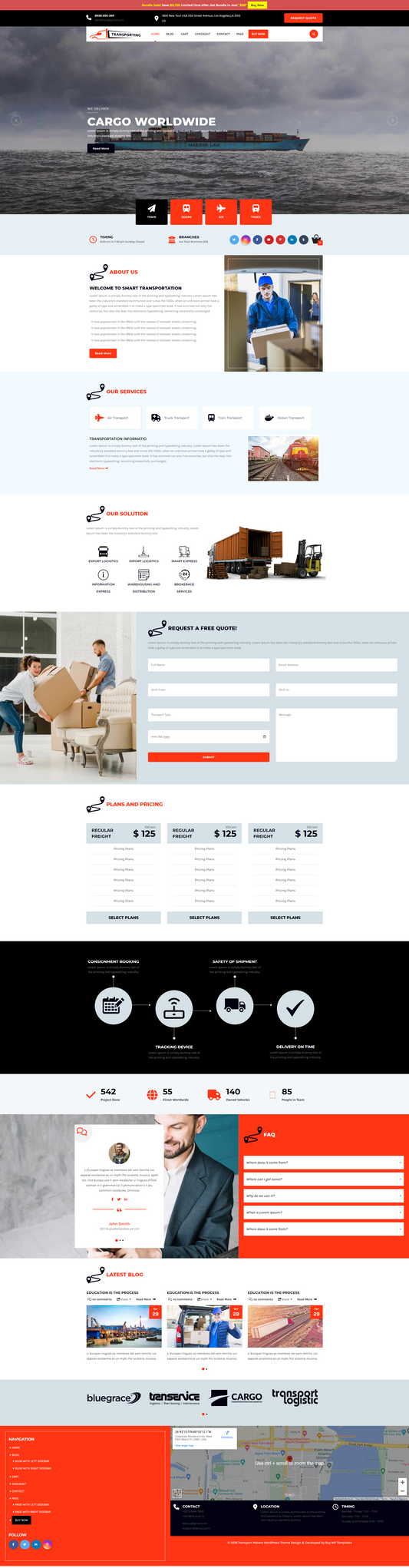
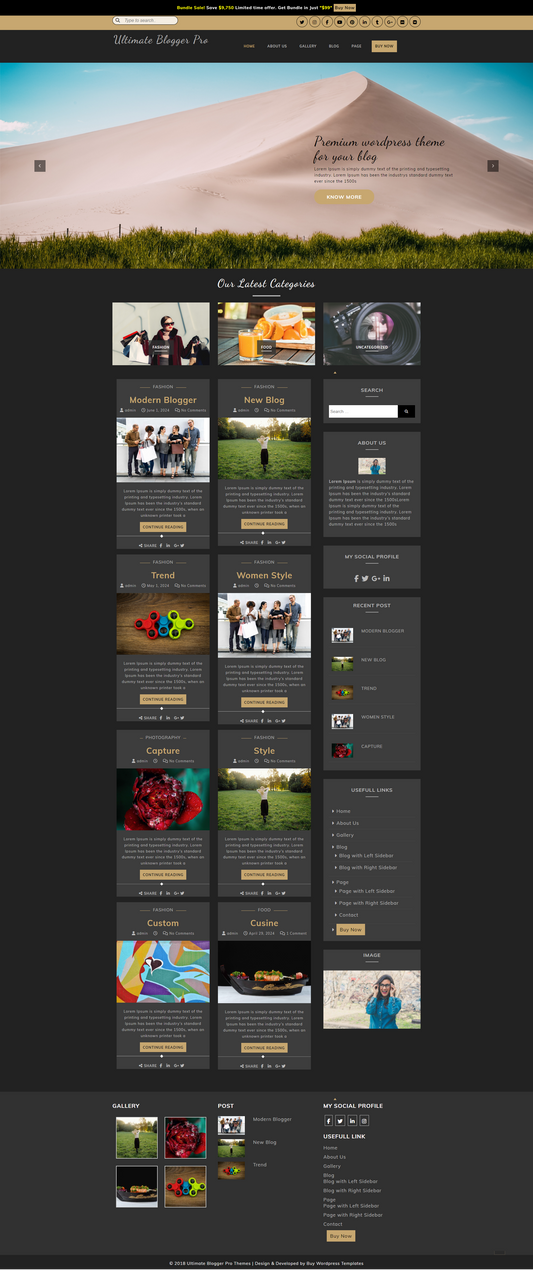
Bundles also work best when your store is built on Best Ecommerce WordPress Themes, because they provide optimized layouts for showcasing grouped products and bundle offers.
Types of Products to be Bundled
Not every product works well in a bundle. Choosing the right products is important. It makes your bundle more appealing and effective. Here are the most common types of products you can bundle in your store.
1. Complementary Products: These are products that naturally go together. Think of a phone and a phone case. Or a laptop and a mouse. Customers already plan to buy these items. Bundling them saves time and adds convenience.
2. Related Products: These products belong to the same category. For example, skincare products like a cleanser, toner, and moisturizer. They serve a similar purpose. Grouping them creates a complete solution for the customer.
3. Slow-Moving Products: Do you have items that rarely sell on their own? Pair them with bestsellers. This gives slow-moving products more visibility. It also helps you clear old inventory faster.
4. Frequently Bought Together Products: Check your store's purchase history. Some products are often bought together. Bundling them makes the buying process easier. Customers appreciate the thoughtful combination.
5. Seasonal or Themed Products: Holidays and special occasions are great bundling opportunities. Create gift bundles for Christmas, Valentine's Day, or birthdays. Themed bundles attract more attention. They also drive higher sales during peak seasons.
6. High and Low-Margin Products: Mix premium products with budget-friendly ones. This balances your profit margins. It also makes the bundle feel like a great value deal for customers.
7. Customizable Products: Let customers build their own bundle. Give them a selection of products to choose from. This adds a personal touch to the shopping experience. It also increases customer satisfaction.
Using WooCommerce product bundles with the right product combinations is key. Choose products that make sense together. Focus on adding value for your customers. The right bundle will always drive better results for your store. If you want to give customers more control, you can use a Product Configurator for WooCommerce to let them build personalized bundles by selecting their preferred items.
WooCommerce Product Bundles Use Cases
Product bundles work across many industries. They are flexible and adaptable. Here are some real-world use cases to inspire your bundling strategy.
1. Fashion and Apparel Stores: Clothing stores can bundle outfits together. For example, pair a shirt, pants, and a belt. Customers love complete look packages. It saves them the effort of mixing and matching on their own.
2. Electronics and Gadget Stores: Electronics stores benefit greatly from bundling. A camera bundle can include a memory card, a tripod, and a bag. Customers get everything they need in one purchase. It also reduces the need to shop elsewhere. Stores selling gadgets can also benefit from specialized Electronics Website Templates that are designed to showcase product kits, accessories, and bundle offers effectively.
3. Health and Beauty Stores: Skincare and beauty brands can create routine bundles. A morning skincare kit or a hair care package works well. Customers follow routines. Bundles make it easy to get all the products at once.
4. Food and Beverage Stores: Food stores can create meal kits or gift hampers. Bundle ingredients for a specific recipe together. It adds a unique and creative shopping experience. Customers enjoy the convenience of ready-made combinations.
5. Fitness and Sports Stores: Fitness stores can bundle workout essentials. A beginner gym kit with gloves, a resistance band, and a water bottle is a great example. It targets new fitness enthusiasts. It also makes a perfect gift option.
The Best Plugins for Creating Product Bundles in WooCommerce
Creating product bundles in WooCommerce requires the right plugin. There are several options available. Each plugin comes with unique features. Here are the best plugins to help you get started. These tools are part of a larger ecosystem of WordPress Ecommerce Plugins that help extend your store’s functionality and improve product merchandising.
1. WooCommerce Product Bundles (Official Plugin)

This is the official plugin by WooCommerce. It is reliable and well-supported. You can create simple and complex bundles easily. It allows you to set bundle pricing and manage stock levels. It is a great starting point for most store owners.
2. YITH WooCommerce Product Bundles

YITH is a trusted name in WooCommerce plugins. This plugin lets you create bundles with ease. You can offer discounts on bundled products. It also supports variable products in bundles. The interface is clean and beginner-friendly.
3. Iconic Bundled Products for WooCommerce

This plugin focuses on simplicity. It allows you to attach bundled products to any existing product. Customers can see the bundled items clearly on the product page. It is lightweight and easy to configure.
4. WPC Product Bundles for WooCommerce

WPC offers a feature-rich bundling solution. It supports both simple and variable products. You can set fixed or percentage-based discounts. It also includes a drag-and-drop interface. This makes bundle creation quick and straightforward.
How to create product bundles for your WooCommerce store?
There are several ways to create product bundles in your WooCommerce store. Each method suits different store needs and goals. Here are the most effective methods to get started. If you are planning to Build an Ecommerce Website with WordPress, grouped products are a useful feature that helps organize related items on a single product page.
Method 1: Create Product Bundles for your WooCommerce Store using WooCommerce Product Bundles Plugin
Creating bundles is a powerful way to increase your average order value and encourage customers to purchase related items together. With the WooCommerce Product Bundles plugin, you can easily group multiple products and offer them as a single package. Follow these steps to create your first bundle:
1. Install and Activate the Plugin
 Begin by logging into your WordPress dashboard. Go to Plugins → Add New, search for WooCommerce Product Bundles, then install and activate the plugin. Make sure WooCommerce is already installed and active on your site.
2. Create a New Product
 Navigate to Products → Add New. Enter a clear and descriptive name for your bundle and write a detailed product description explaining what the bundle includes and its benefits.
3. Select the Product Type
 Scroll down to the Product Data section. From the dropdown menu, select Product Bundle. This will enable all the bundle-specific settings provided by the plugin.
4. Add Bundled Products
Click on the Bundled Products tab. Use the search field to find and add the products you want to include in your bundle. You can add multiple items and arrange them in the desired order.
5. Configure Pricing and Shipping
 Decide how the bundle pricing should work:
- Set a fixed price for the entire bundle, or
- Enable per-item pricing, where the total is calculated based on selected products
You can also configure shipping settings, choosing between bundled shipping or individual item shipping depending on your store needs.
6. Customize Individual Item Settings
The plugin allows detailed control over each bundled product. You can:
- Set minimum and maximum quantities for each item
- Make certain products optional or mandatory
- Show or hide product images and descriptions
- Apply discounts to individual items within the bundle
7. Publish and Test
Once everything is configured, click Publish. Visit the product page on your store to check how the bundle appears. Add it to the cart and test the pricing, options, and checkout process to ensure everything works smoothly.
Method 2: Sell fixed price Bundles with WooCommerce Product Bundles
Selling fixed-price bundles is a powerful way to increase your average order value. By using WooCommerce product bundles, you can group several items together and sell them as a single package for a set cost. This approach works best when the items in the bundle are frequently bought together. It simplifies the decision-making process for your customers.
How to Set Up a Fixed Price Bundle?

To implement this method, follow these steps:
- Create a New Product: In your WordPress dashboard, go to Products and select Add New.
- Select Product Type: In the Product Data panel, choose Bundle from the dropdown menu.
- Add Bundled Items: Navigate to the Bundled Products tab. Search for and add the individual items you want to include.
- Configure Pricing: Go to the General tab. Ensure the Price field is filled with your total fixed cost.
- Disable Per-Item Pricing: In the Bundled Products settings, make sure the "Price Individually" checkbox is unchecked for each item. This ensures the customer only sees the total bundle price.
Method 3: Let customers pick and choose product bundles with variations
This method offers shoppers the ultimate flexibility. It allows them to build their own kits by selecting specific product options. By using WooCommerce product bundles, you can create a "Mix and Match" experience that caters to individual preferences. This strategy is perfect for gift boxes, custom apparel sets, or personalized skincare routines.
How to Set Up Pick-and-Choose Bundles?
Follow these steps to enable customer selections:
- Start a New Bundle: Log in to your WordPress dashboard → Go to Products → Add New
- Define the Product: Scroll to the Product Data section → Open the dropdown → Select Product Bundle
- Add Variable Products: In the Product Data box → Click the Bundled Products tab → Click Add Product → Search and select products that have variations (like size or color)
- Enable Selection: After adding a product → Expand the item settings → Check Optional to allow customers to include/exclude it → Use Filters to let users choose variations (size, color, etc.)
- Set Pricing Logic: In the Product Data → General tab → Enable Per-Item Pricing for dynamic pricing → The total price will automatically update based on selected items and variations
How to Create a Grouped Product in WooCommerce?
Creating a grouped product in WooCommerce is a great way to offer a collection of related items. It allows customers to buy multiple products from a single page. Follow these steps to set yours up.
1. Create the Individual Products

First, you must create the "child" products. These are the items that will appear inside the group.
- Go to Products > Add New.
- Enter the name and price for each item.
- Set the Product Data to Simple product.
- Publish each product individually.
2. Create the Grouped Product

Now, create the main container for these items.
- Go to Products > Add New.
- Enter a title for the collection.
- Find the Product Data dropdown menu.
- Select Grouped product.
- Note that the price and inventory tabs will disappear. This is normal.
3. Link the Products

This step connects your items to the group.
- Click the Linked Products tab on the left.
- Look for the Grouped products field.
- Type the names of the products you created in Step 1.
- Select them as they appear.
- You can drag and drop them to change the display order.
4. Finalize and Publish
- Add a main product image for the group.
- Write a short description to explain the set.
- Click Publish.
Conclusion
Creating WooCommerce product bundles is a powerful way to increase your average order value. This method helps customers find related items quickly. It turns a simple visit into a multi-item purchase. A well-designed store using Best WooCommerce Themes can also make your bundles more visually appealing and easier for customers to explore. You provide value by curating the best combinations for your audience. The setup process is straightforward within the WordPress dashboard. It requires no complex coding skills. By grouping items, you reduce the clicks needed to fill a cart. This efficiency improves the overall user experience. Clear descriptions and high-quality images help sell the set. Start building your collections today to see a boost in engagement. Consistent testing of different product pairings will yield the best results.
Frequently Asked Questions
1. What is the main benefit of bundling products?
Bundling increases your average order value. It also helps move slower-selling stock by pairing it with popular items.
2. Does WooCommerce support bundles by default?
The core software includes "Grouped Products." For advanced features like fixed bundle discounts, you may need a specific extension.
3. How does shipping work for bundled items?
By default, WooCommerce calculates shipping based on the individual items in the bundle. You can adjust these settings if you ship the set in a single box.
4. Can customers remove items from a bundle?
In a standard grouped product, customers can choose the quantity for each item. They can set some to zero if they only want part of the set.